TEST
testing testing testing
Using WordPress Plugins
Plugins are the easiest and most common way to add zoom effects without coding.
- For Product/Image Magnification: Plugins like WP Image Zoom or Magic Zoom Plus provide a "magnifying glass" effect, which is ideal for e-commerce sites where users need to see fine details of an image.
- Installation Steps (general for most plugins):
- Log in to your WordPress admin panel.
- Go to Plugins > Add New.
- In the search bar, type the plugin name (e.g., "WP Image Zoom").
- Click Install Now and then Activate.
- Configure the specific zoom settings (lens shape, zoom level, etc.) in the plugin's settings menu.
- Installation Steps (general for most plugins):
- For Content/Info Boxes: Plugins such as Advanced Image Hover Effect for Elementor or Image Hover Effects Ultimate offer various hover animations, including "zoom in" and "zoom out" effects for image boxes that can also display titles and descriptions.
Using Page Builders (e.g., Elementor)
If you are using a page builder, you may have built-in options or dedicated add-ons.
- Many Elementor add-ons provide specific "Image Zoom Content Box" widgets.
- Elementor also allows adding custom CSS to an image or column to create a zoom effect using the
transform: scale()property and settingoverflow: hiddenon the container to keep the image within its original frame.
Using Custom CSS
For users comfortable with code, you can add a custom CSS class to an image or container and define the hover effect.
- Select the image or container in your editor, go to the Advanced settings, and add a custom class (e.g.,
image-zoom). - Add the corresponding CSS code to your theme's Custom CSS section (often found under Appearance > Customize > Additional CSS or within the page builder's settings):
words words words
words words words
words words words
2016
test
2016
- 1234353
- 54867547
2017
test
2017
- 456489+
- 789789
2018
test 3
2018
- enter item text here
- enter item text here
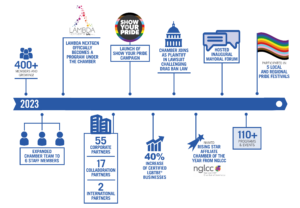
Chamber timeline
Front Description
allows icons on title, background color active vs default
Back Content
back content here
2016
words words words
2017
words words words
2018
words words words

heading here
words words wordswords words wordswords words wordswords words wordswords words wordswords words wordswords words wordswords words wordswords words words
2 words words wordswords words wordswords words wordswords words words
3 words words wordswords words wordswords words wordswords words wordswords words wordswords words words